Signing Agreements in PropTx
Creation Date: Feb 25, 2025
Created By: Ali Reaziat
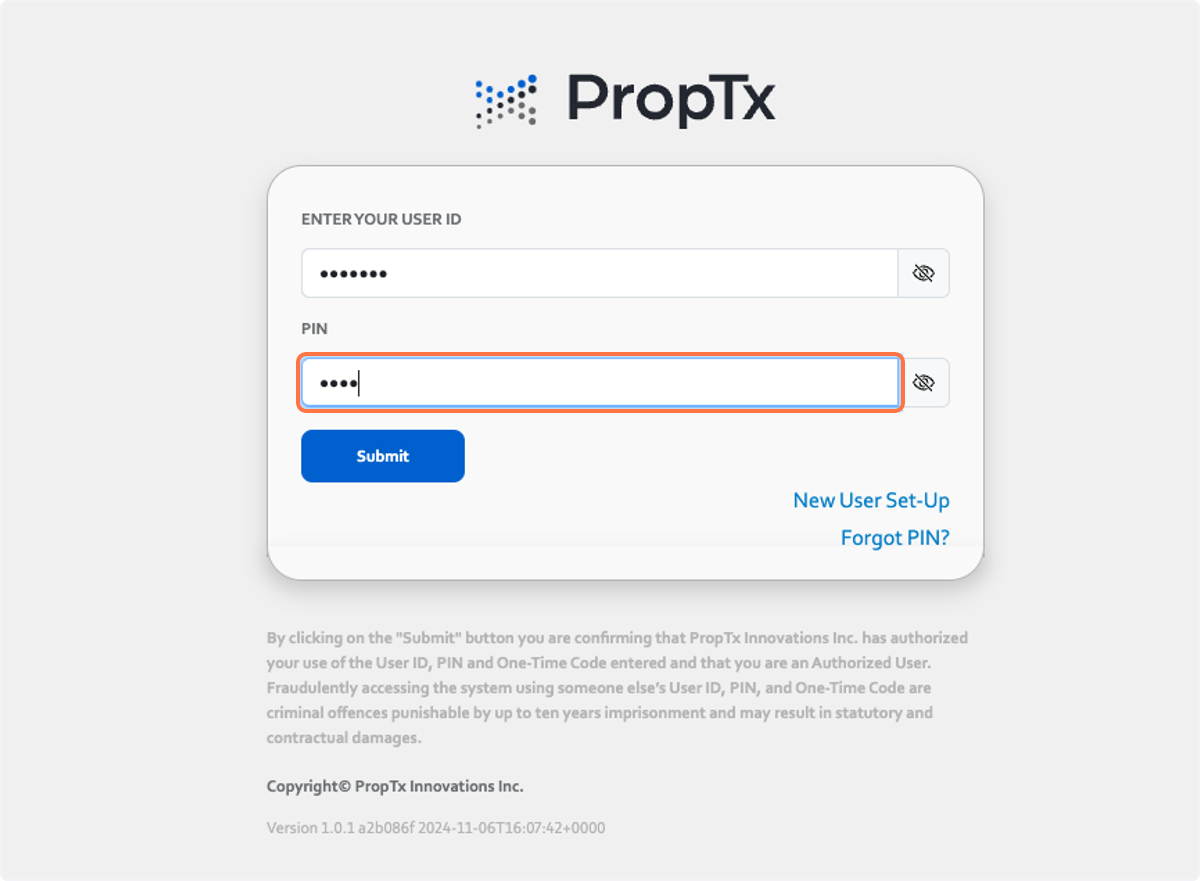
1. Type in your User ID and password and click Submit
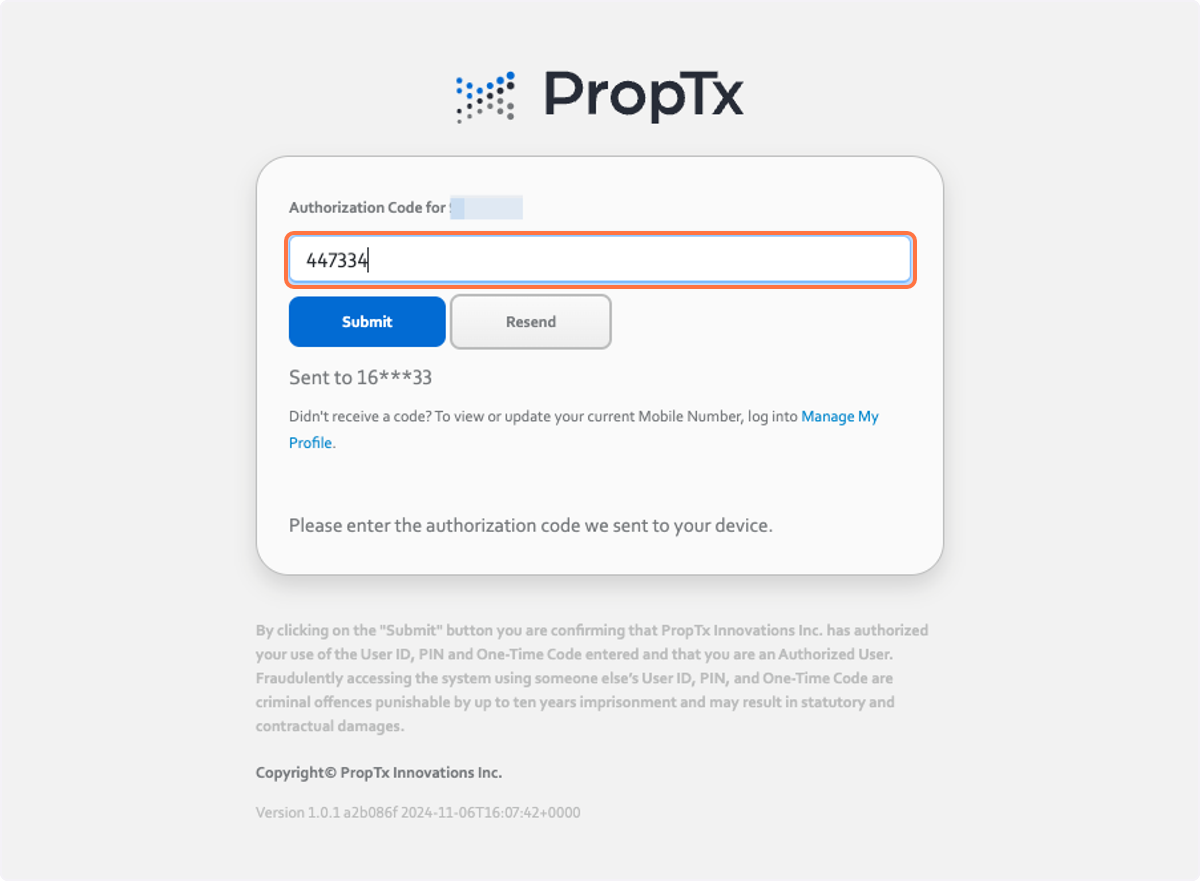
2. Type in your Authorization Code and press Submi
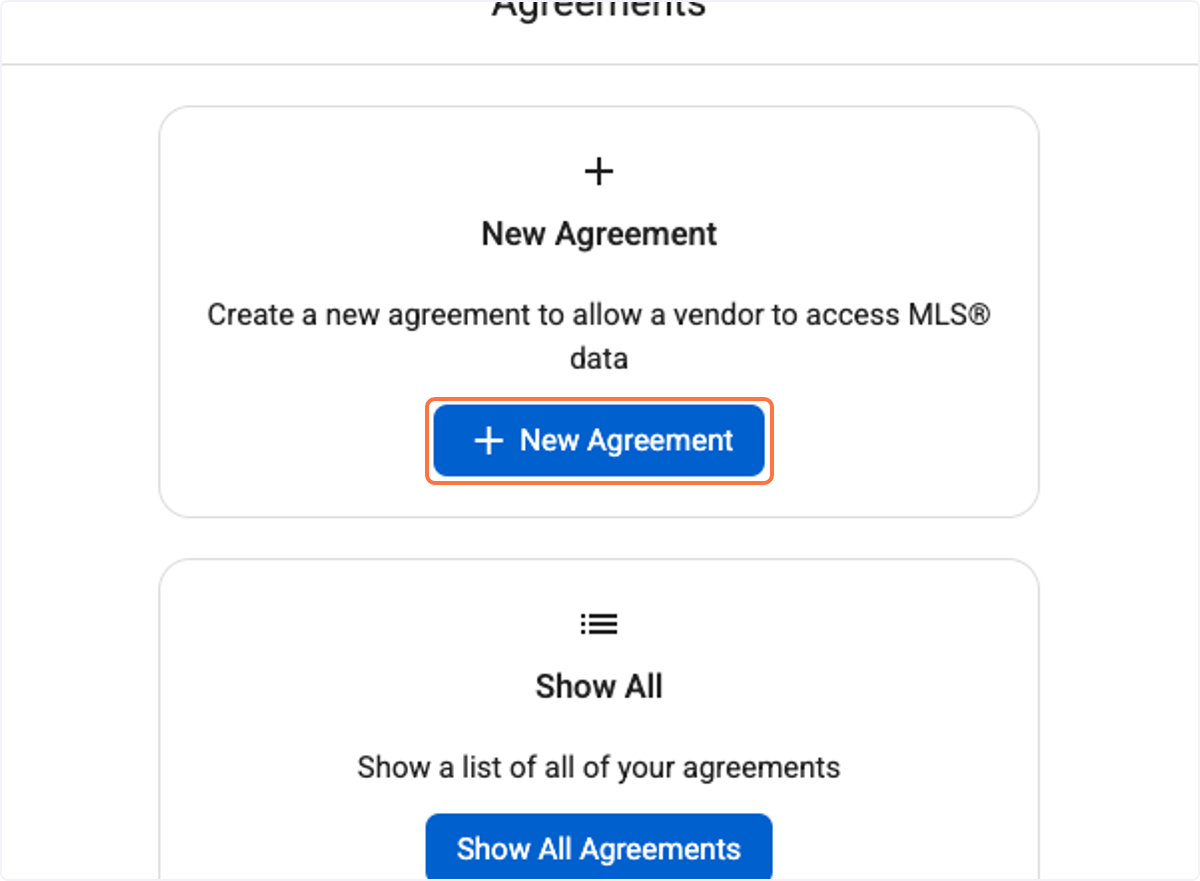
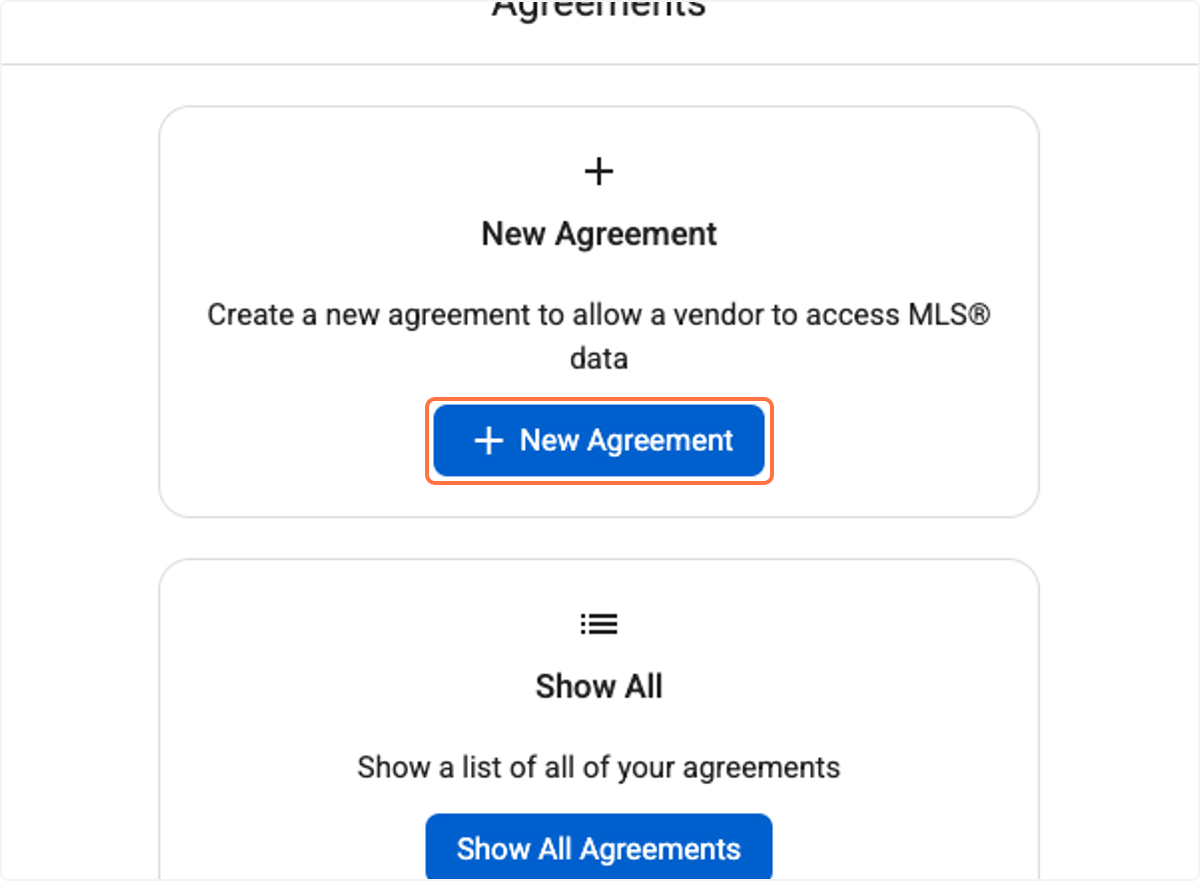
3. Click on New Agreement
4. Click on Data License Agreement (DLA)
IMPORTANT NOTE: You have to sign ALL THREE agreements. Instructions for IDX and VOW follow.
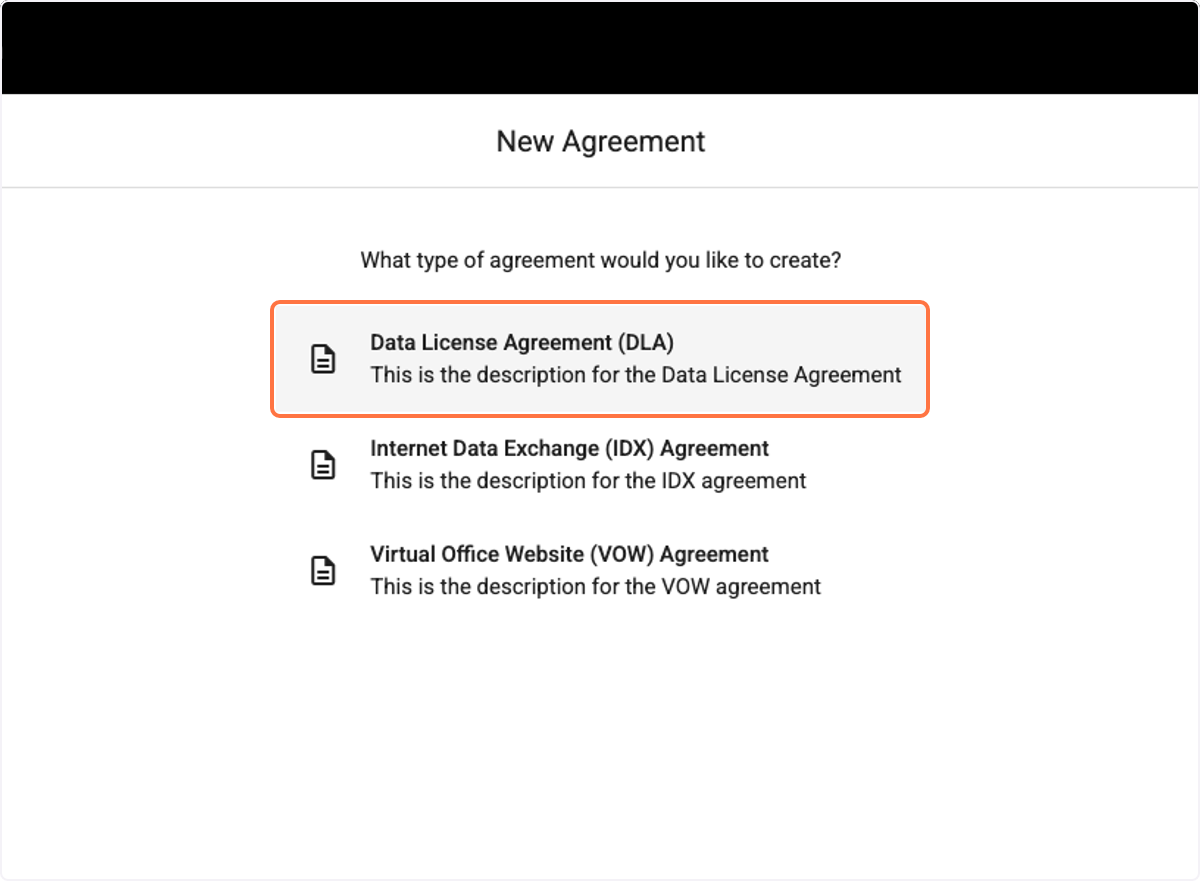
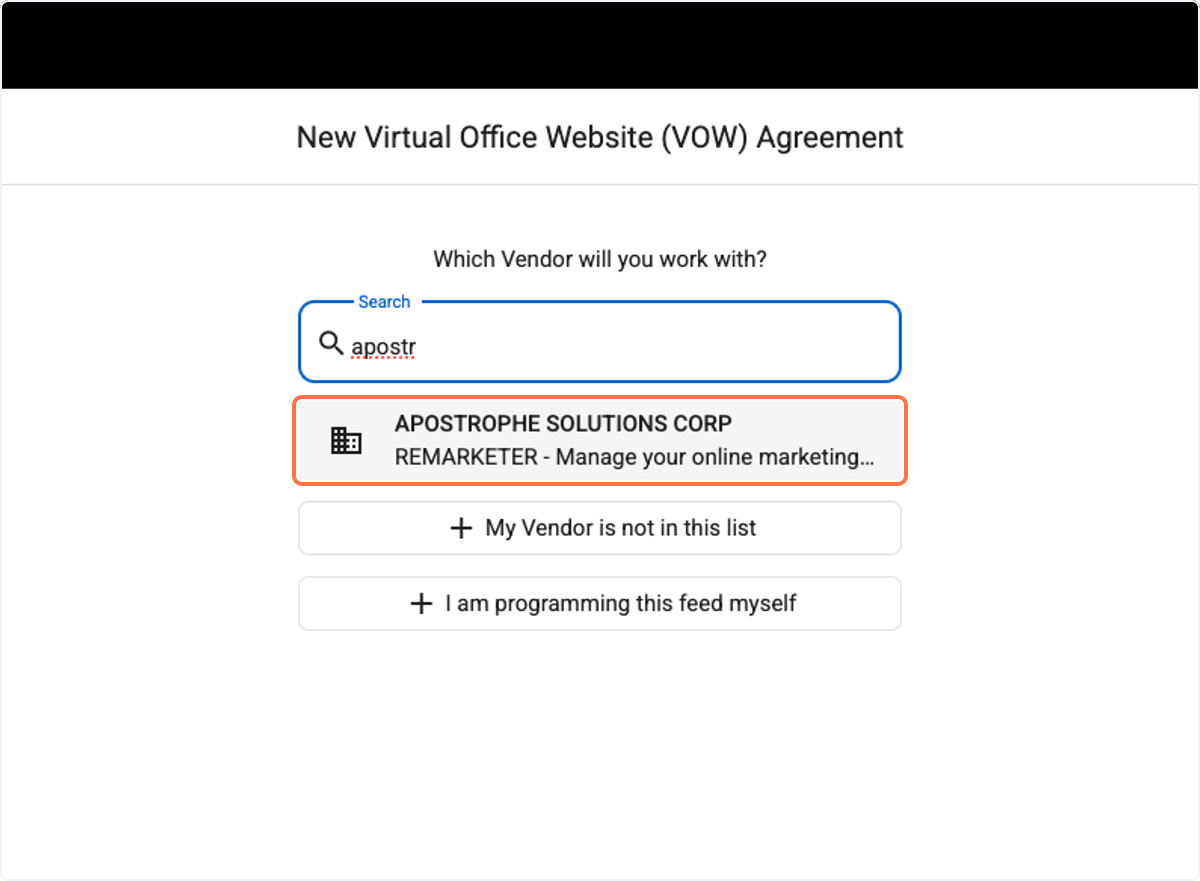
5. Search for APOSTROPHE SOLUTIONS CORP - REMARKETER under Vendors
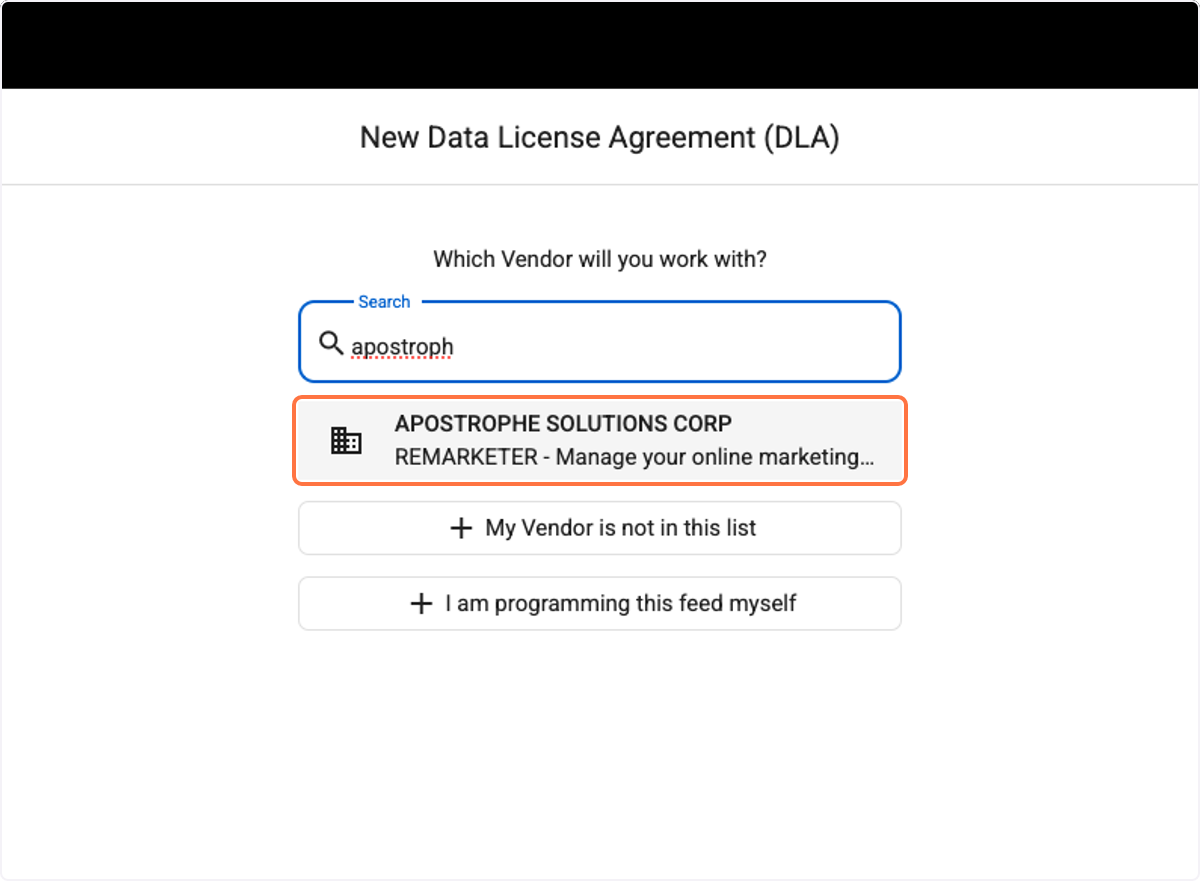
6. For Access Level select Brokerage's Listings
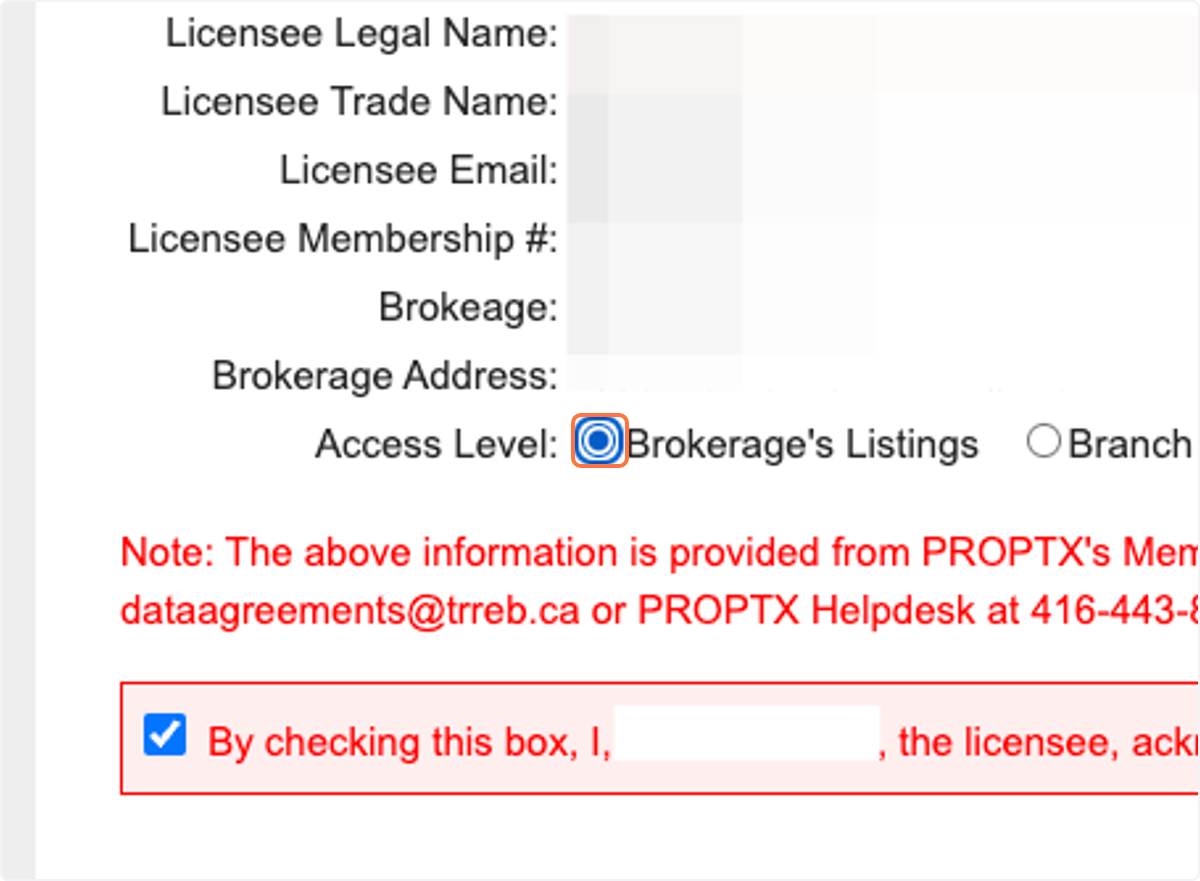
7. Make sure all the agreement boxes are checked.
Click on Sign Agreement and confirm.
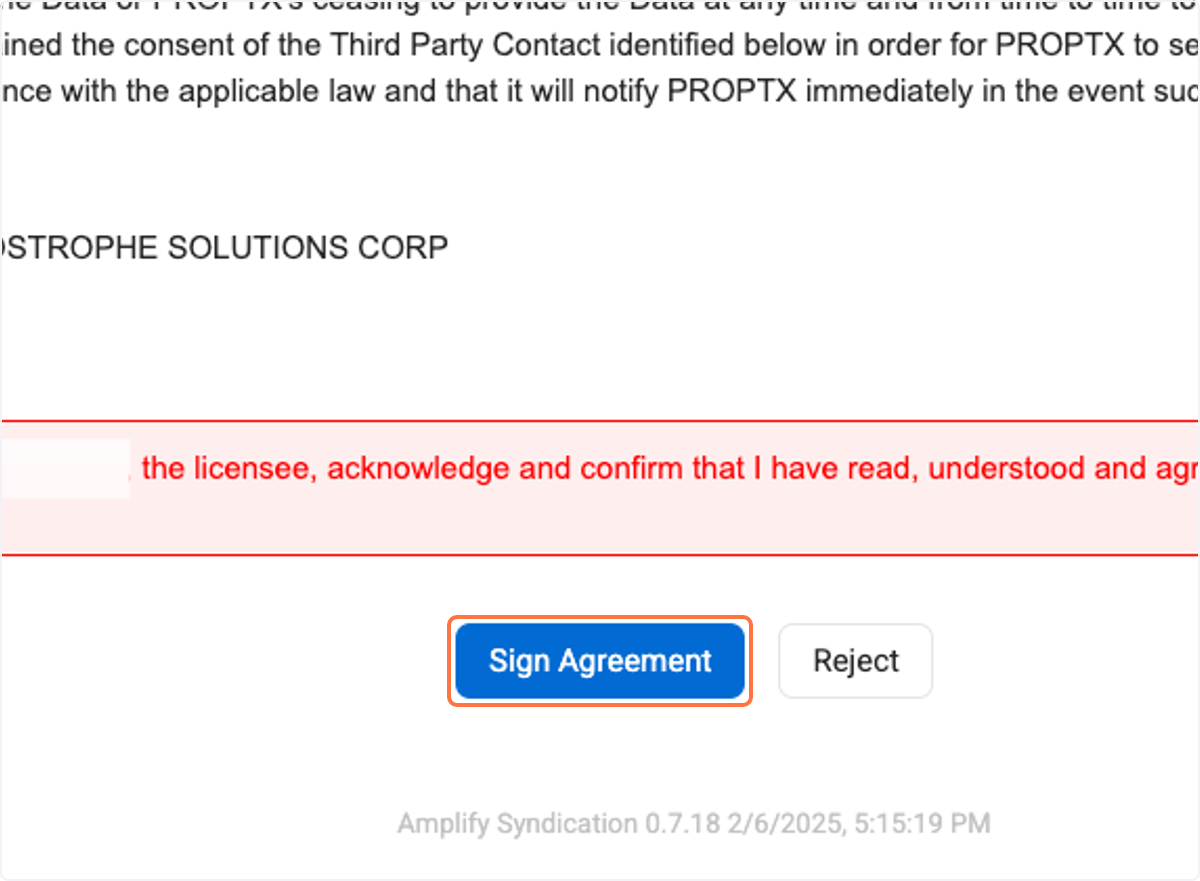
8. Once submitted, click on New Agreement AGAIN
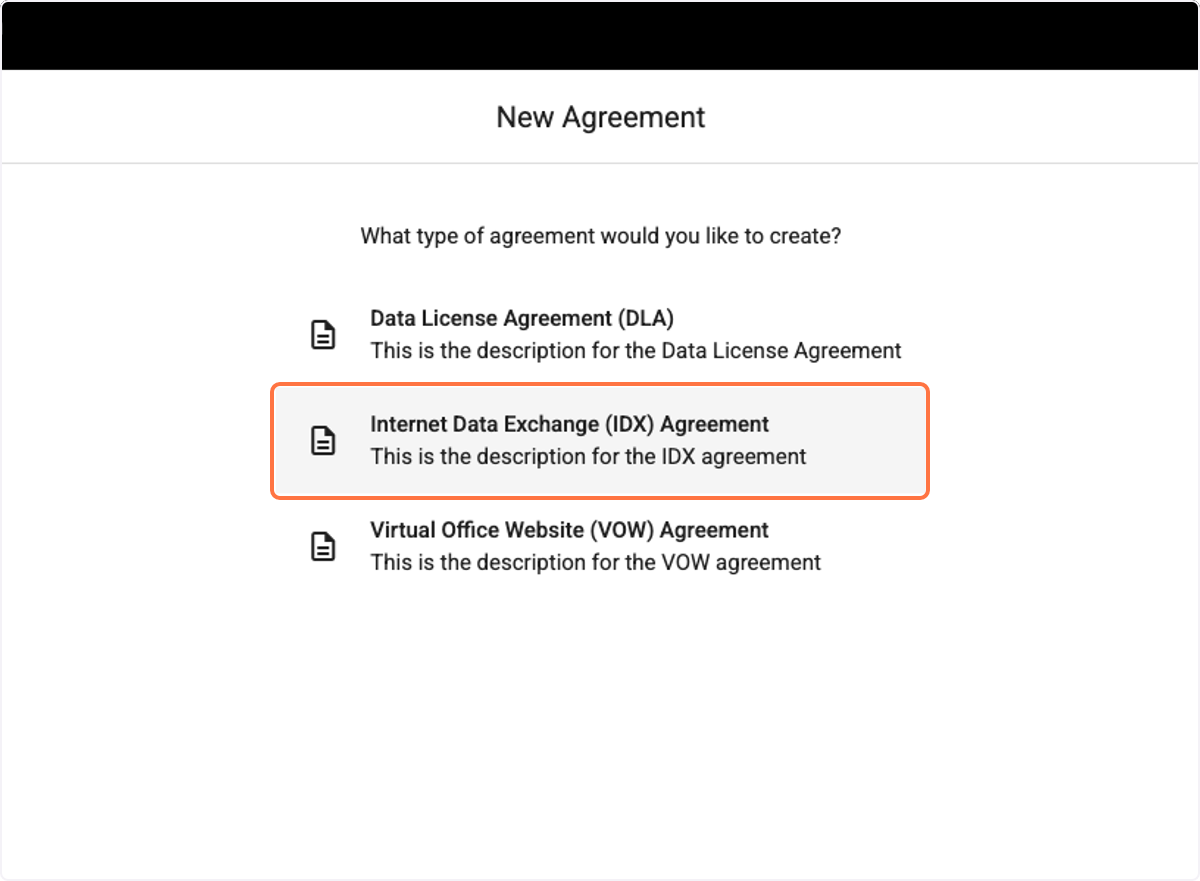
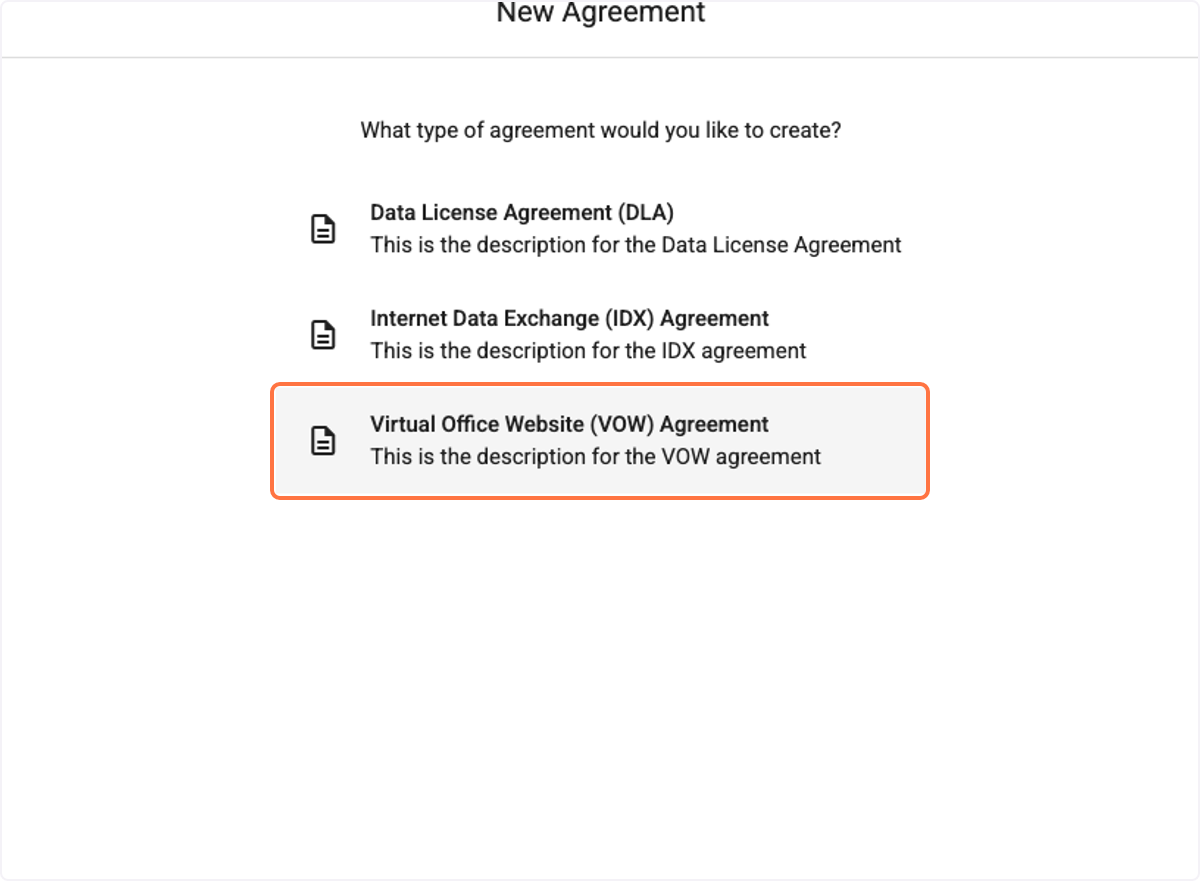
9. Click on Internet Data Exchange (IDX) Agreement
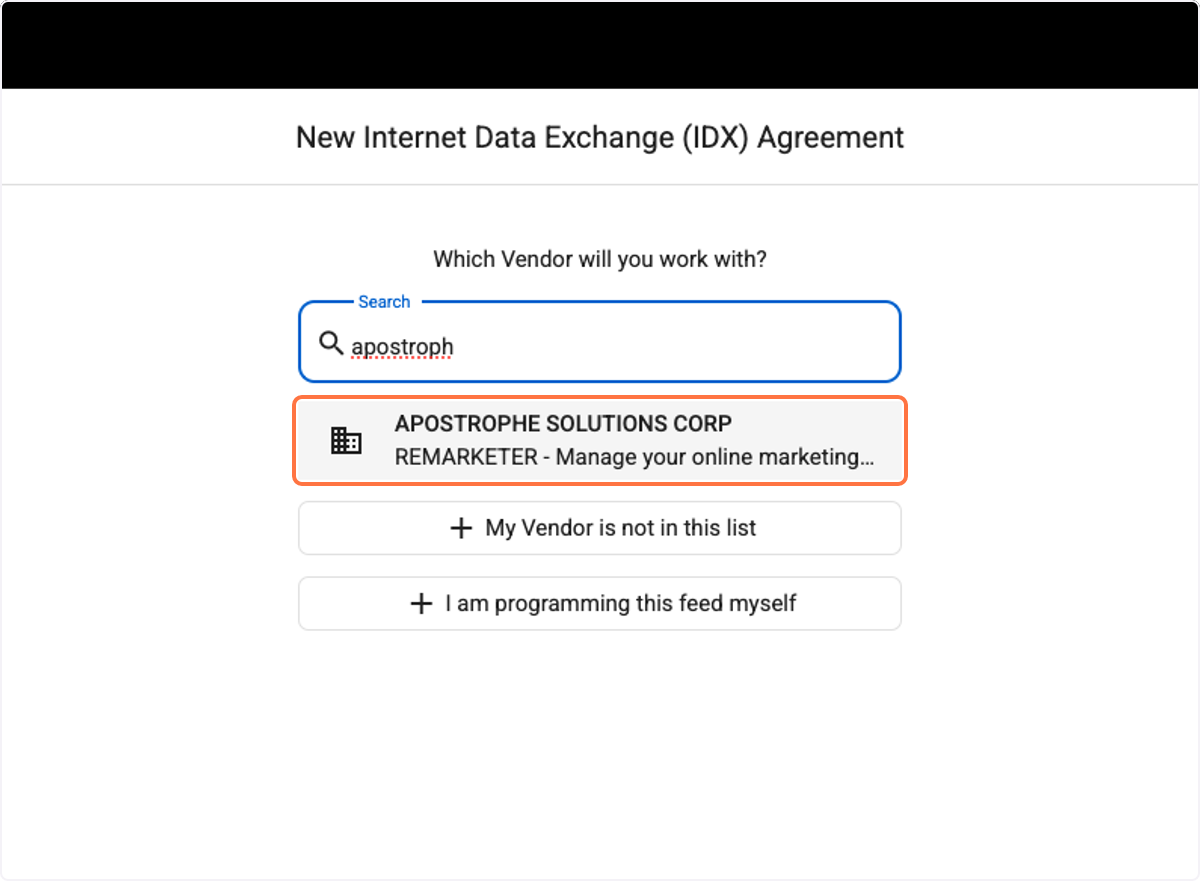
10. Search for APOSTROPHE SOLUTIONS CORP - REMARKETER under Vendors
11. Under IDX Data Subscriber Website Information add your website URL.
IMPORTANT: Your website URL must start with: https://
Example: https://www.yourdomain.com
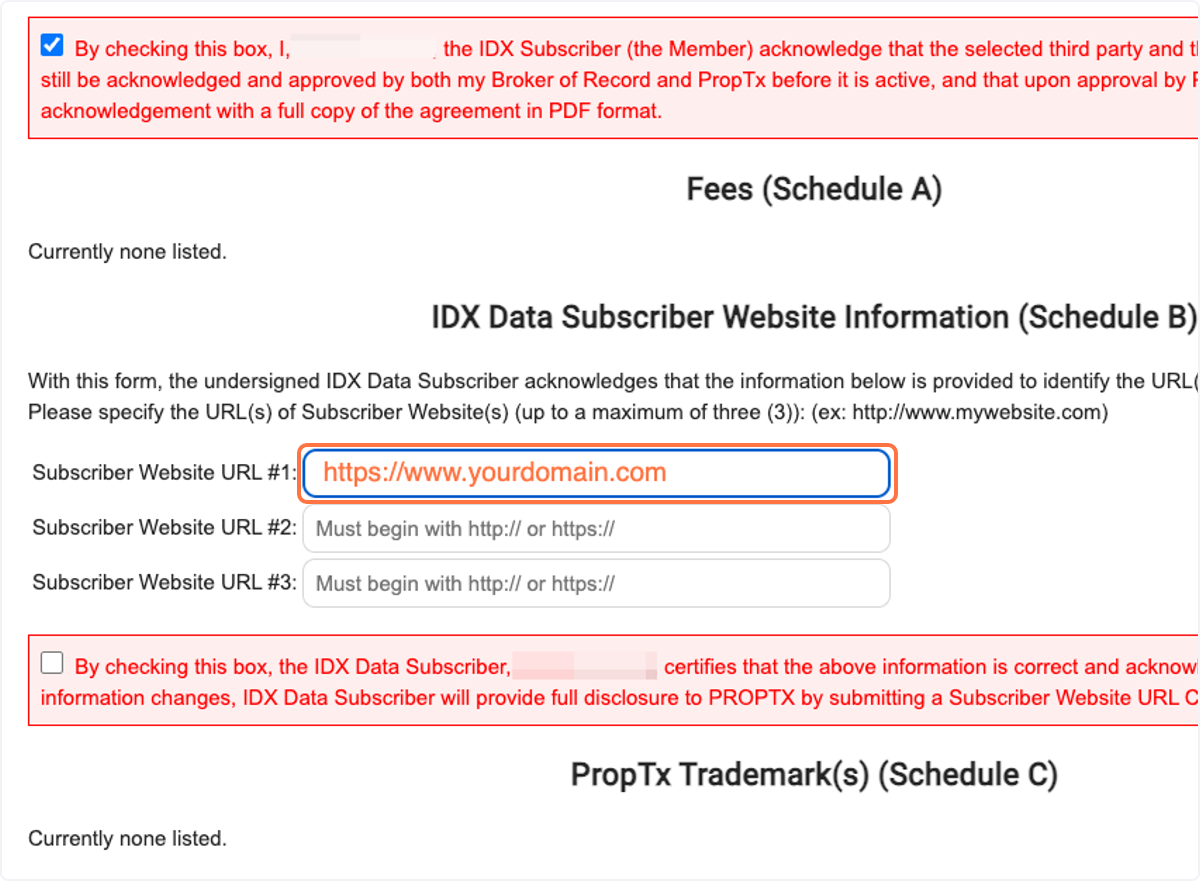
12. Make sure all the agreement boxes are checked.
Click on Sign Agreement and confirm.
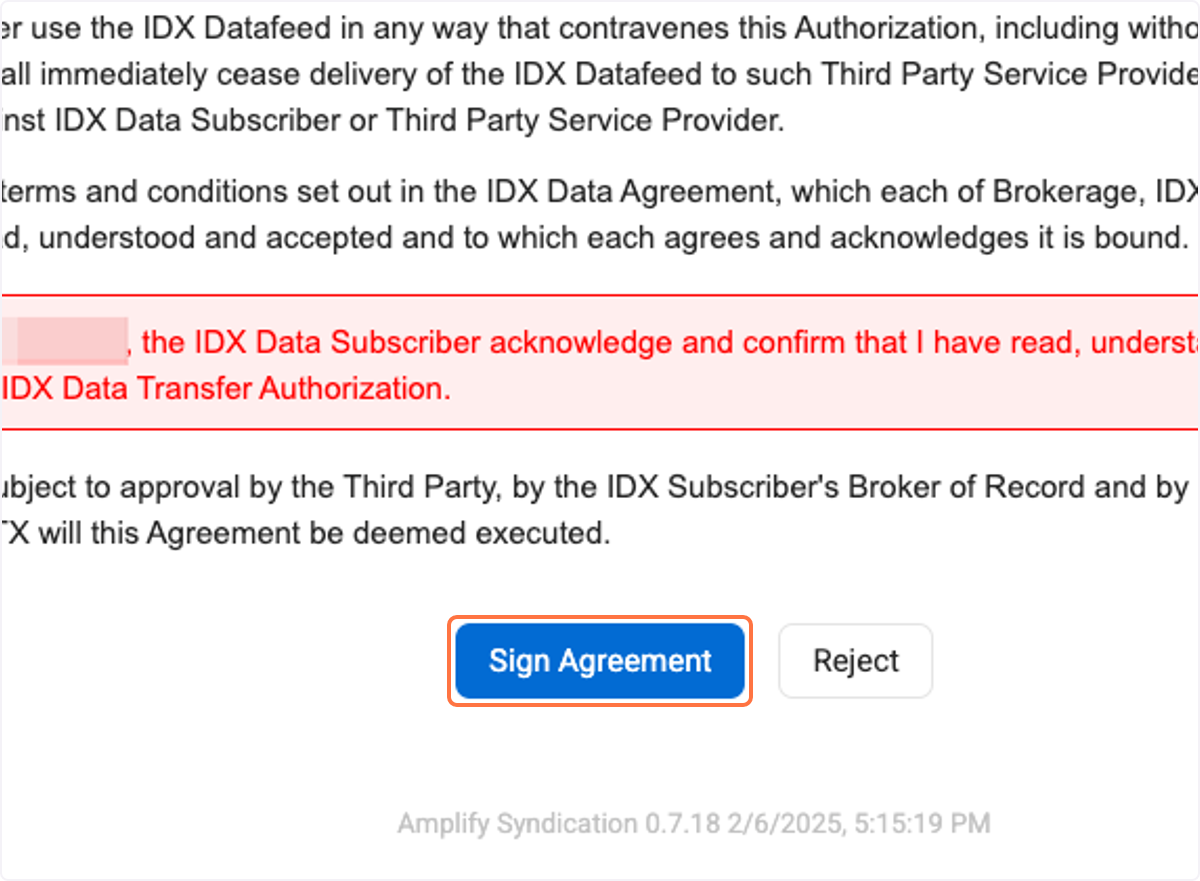
13. Once submitted, click on New Agreement AGAIN
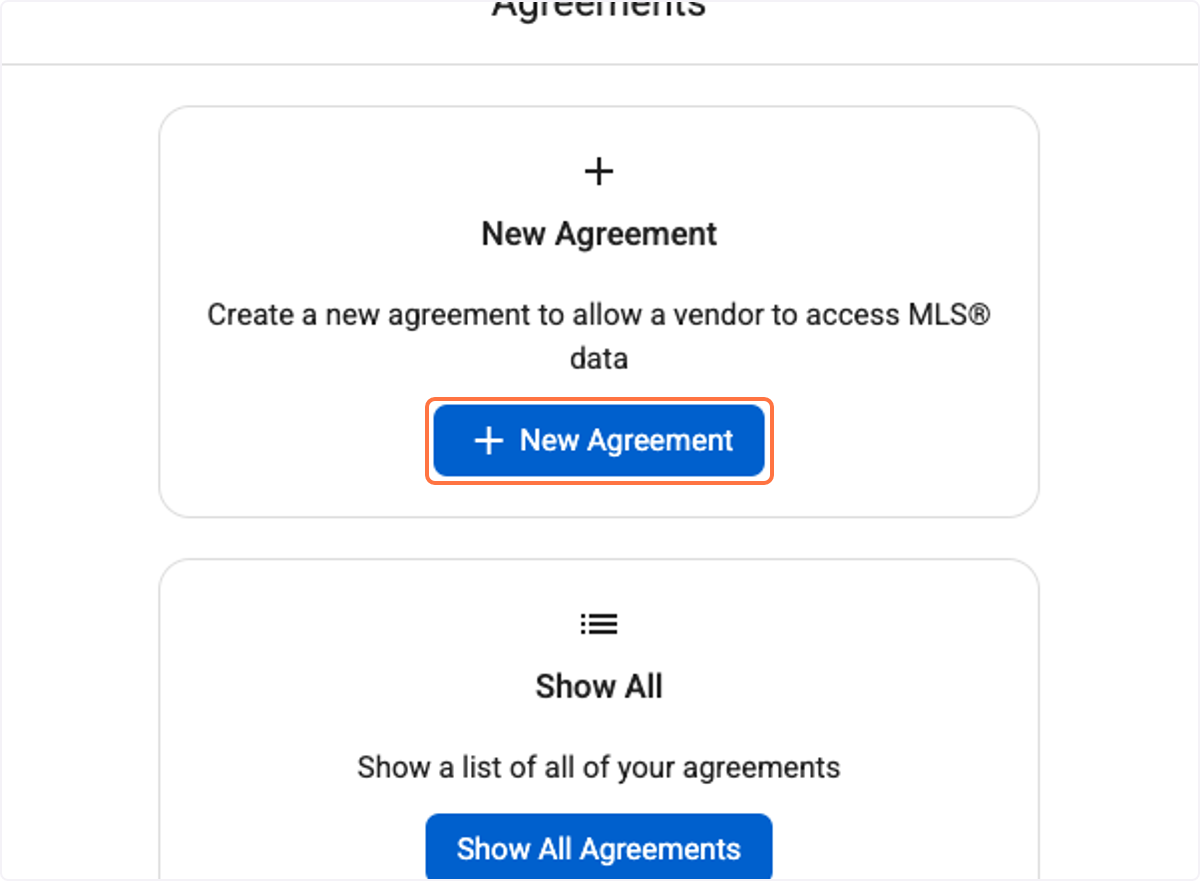
14. Click on Virtual Office Website (VOW) Agreement
15. Search for APOSTROPHE SOLUTIONS CORP - REMARKETER under Vendors
16. Under VOW Website Information add your website URL.
IMPORTANT: Your website URL must start with: https://
Example: https://www.yourdomain.com
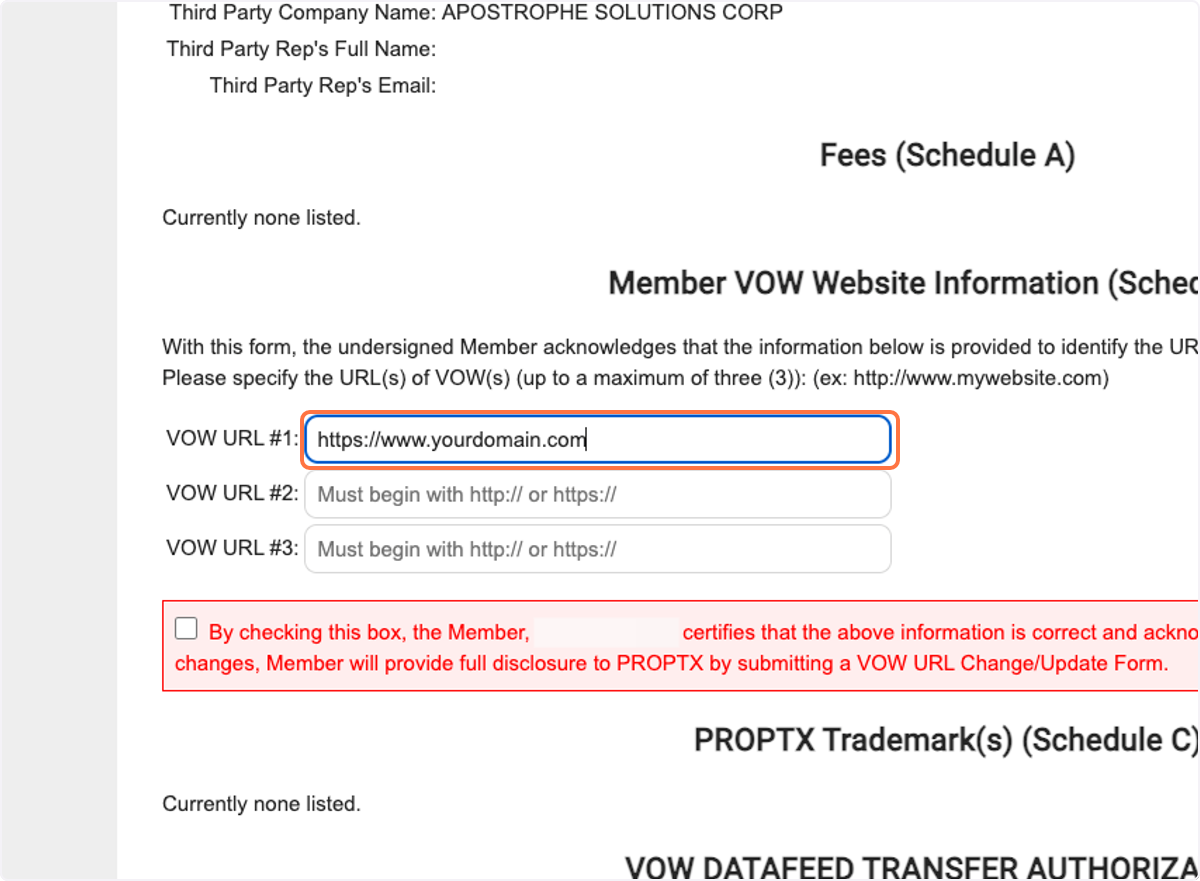
17. Make sure all the agreement boxes are checked.
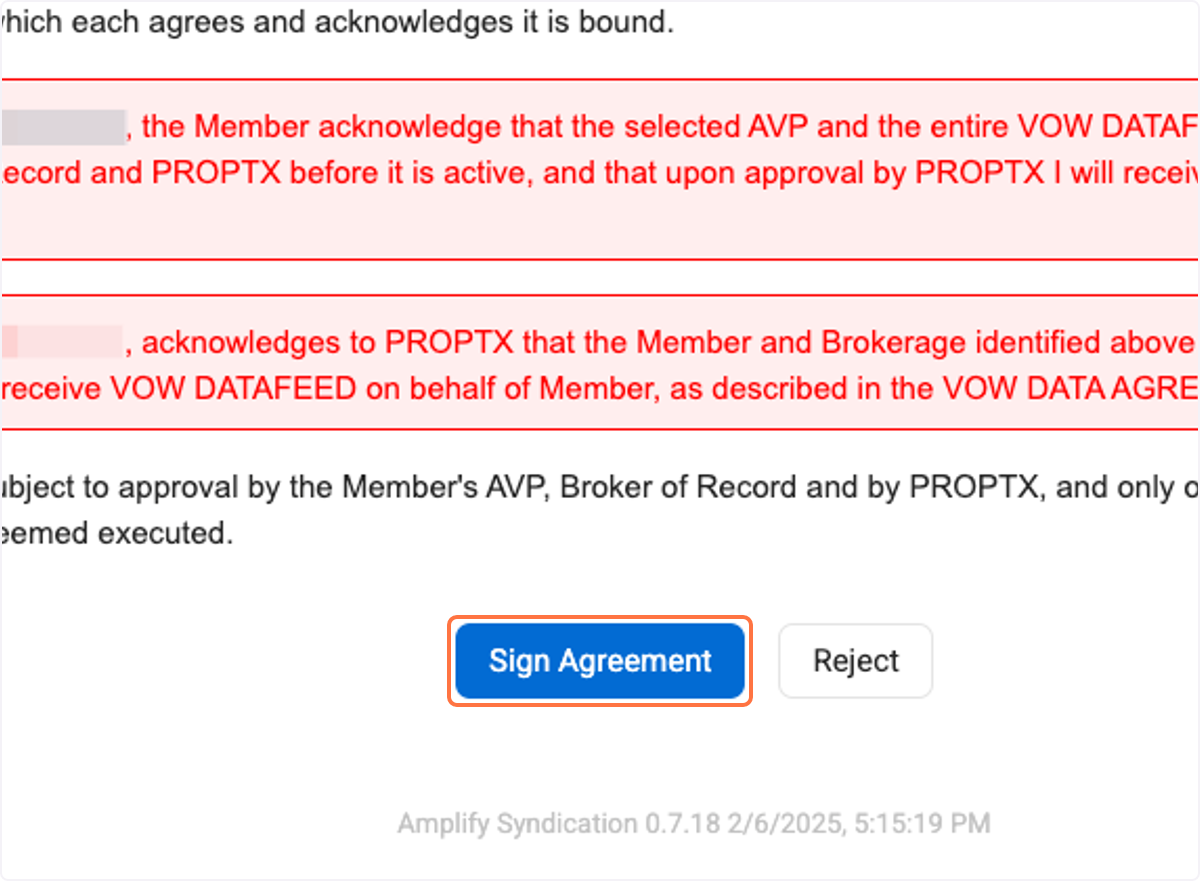
Click on Sign Agreement and confirm.
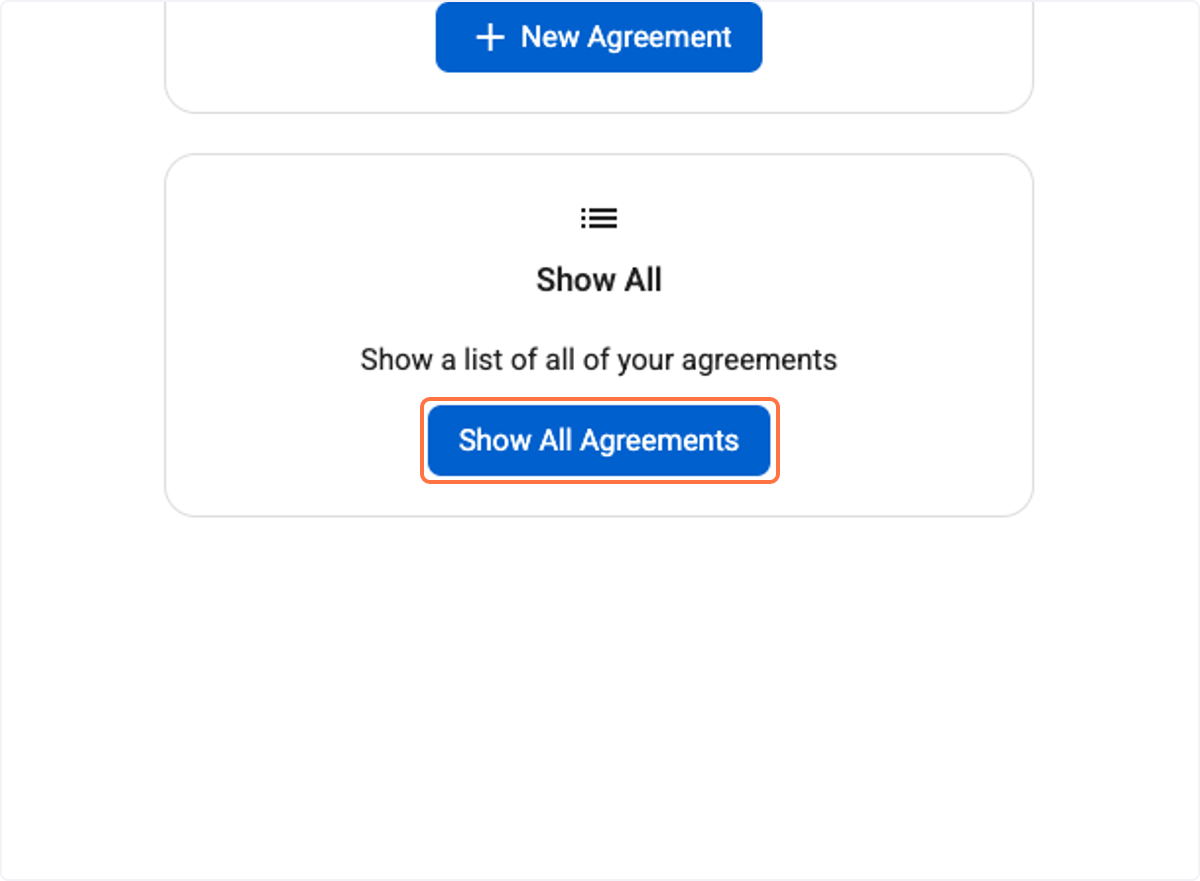
18. To view the status of your agreements click on Show All Agreements